

Autodesk Inventor 2021 | Ultimate Guide for 3D Mechanical Design

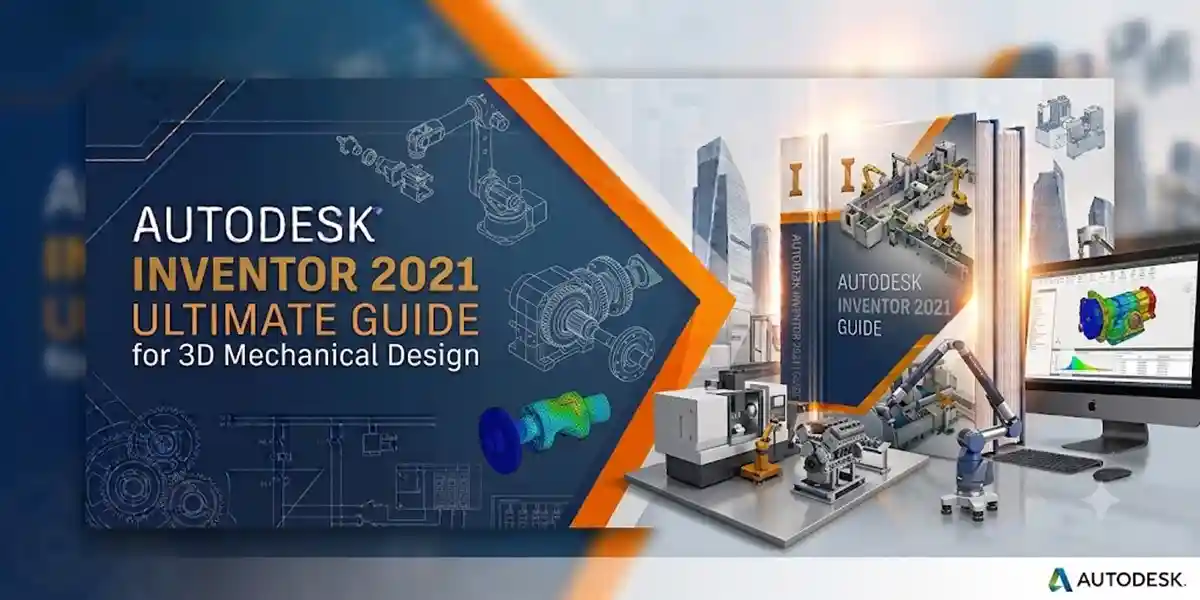
1. Introduction to Autodesk Inventor 2021
Autodesk Inventor 2021 is a professional-grade 3D CAD (Computer-Aided Design) software used by engineers and designers to create, document, and simulate product designs. It's not just a modeling tool; it's a complete product development platform that includes tools for sheet metal, frame design, tube and pipe routing, and more.
The 2021 release focused on performance and workflow enhancements, making it a solid choice for both new users and those upgrading from older versions.
Product Key: 797M1
System Requirements (Minimum):
- OS: 64-bit Microsoft Windows 10
- CPU: 3.0 GHz or higher
- RAM: 8 GB (16 GB recommended)
- Disk Space: 40 GB free
- Graphics: 1 GB GPU with 29 GB/s bandwidth
Before you can leverage these features, you must activate the software. Activation verifies that your license is legitimate and links it to your Autodesk Account or your organization's license server.
2. Key Features of Inventor 2021
Understanding what you're activating helps you appreciate the value of the software. Here are the standout features of Inventor 2021:
Design & Modeling
- Parametric Modeling: Create intelligent 3D models where dimensions and parameters drive the design. Change a dimension, and the entire model updates automatically.
- Freeform Modeling: Use T-splines to create complex, organic shapes that are difficult to achieve with traditional solid modeling.
- Assembly Modeling: Build complex assemblies with constraints and joints that simulate real-world mechanical relationships.
- Sheet Metal Design: Create flat patterns and 3D sheet metal parts with specialized tools for flanges, hems, and cuts.
Documentation & Communication
- Automated Drawing Creation: Generate 2D drawings (views, sections, details) directly from your 3D models.
- Model-Based Definition (MBD): Embed critical product manufacturing information (PMI) directly into the 3D model, reducing reliance on 2D drawings.
- Interoperability: Import and export files from other CAD systems, including AutoCAD, SolidWorks, and STEP files.
Simulation & Analysis
- Frame Analysis: Simulate stress and deflection on structural frames.
- Dynamic Simulation: Analyze the motion of mechanisms and assemblies.
- Stress Analysis: Perform finite element analysis (FEA) to test parts and assemblies under various loads.
Performance & Collaboration
- AnyCAD: Reference and update models from other CAD systems without converting them, preserving the design intent.
- Improved Performance: The 2021 version includes faster modeling and assembly workflows.
- Cloud Collaboration: Share designs and collaborate with team members using Autodesk's cloud platform.
3. Installing Autodesk Inventor 2021
Activation happens after installation, so let's get Inventor on your machine first.
Step 1: Download the Installer
- Go to Autodesk and sign in with your Autodesk Account.
- Navigate to "All Products and Services."
- Find Autodesk Inventor 2021 in your product list.
- Click "Download" to get the installer. If you have a suite (like Product Design & Manufacturing Collection), you may need to select Inventor from within the suite installer.
Step 2: Run the Installer
- Locate the downloaded installer file (usually in your Downloads folder).
- Right-click the installer and select "Run as administrator."
- In the installation wizard, choose "Install."
- Accept the license agreement.
- If prompted, enter your Serial Number and Product Key (797M1). For subscription users, you can sign in instead.
- Select the components you want to install. For most users, the default selection is fine.
- Choose your installation path and click "Install."
Step 3: Complete Installation
The installation may take 20-40 minutes depending on your hardware. Once complete, click "Finish." You may be prompted to restart your computer.
4. Understanding Autodesk Licensing
Autodesk uses a hierarchical licensing system. Knowing your license type is crucial because the activation method differs for each.
License Type Hierarchy
Autodesk prioritizes licenses in this order:
- Education: Free access for students and educators.
- Commercial (Single-User): A subscription tied to one user's Autodesk Account.
- Commercial (Multi-User): A subscription with a pool of seats managed via a network license server.
- Trial: A time-limited free version.
5. Activation Methods (Step-by-Step)
Method 1: Online Activation (Single-User Subscription)
This is the easiest and most common method for modern subscriptions.
Steps:
- Launch Autodesk Inventor 2021.
- The "Sign In" window will appear. If not, go to Help > About > Product Information > Activate.
- Sign in with your Autodesk Account credentials.
- The software will automatically validate your license and activate.
- You may see a "Welcome" screen. Click "Start" to begin using Inventor.
Tip: Ensure your system clock and date are correct, as an incorrect time can cause validation failures.
Method 2: Offline Activation (Request Code Method)
Use this when your workstation has no internet access. This is common for perpetual license holders or in secure environments.
Steps:
- Launch Inventor 2021 and select "Activate."
- Choose "I have an activation code from Autodesk."
- Copy the Request Code displayed on your screen.
- On a machine with internet access, go to the Autodesk.
- Sign in with your Autodesk Account.
- Enter your Serial Number (for perpetual licenses) or select your subscription.
- Paste the Request Code into the field.
- Click "Generate Activation Code."
- Copy the generated Activation Code and return to your offline machine.
- Paste the code into the Inventor activation dialog.
- Click "Next" and then "Finish."
Important: Perpetual license users with 2021 products must go online at least once to register the license before using it offline.
Method 3: Network License Activation (Multi-User)
For organizations using a network license server (FlexNet), activation happens at the server level.
Server-Side Setup:
- Install FlexNet License Manager on your server.
- Place your license file (e.g., inventor_2021.lic) in the license directory.
- Configure the server using LMTOOLS (paths to lmgrd.exe and the license file).
- Start the license server:
lmgrd -z -c "C:\Autodesk\License\inventor_2021.lic" -l "C:\Autodesk\License\lmgrd.log"
- Verify the server is running:
lmutil lmstat -a -c "C:\Autodesk\License\inventor_2021.lic"
Client-Side Setup:
- Install Inventor 2021 on the workstation.
- Set the license server environment variable:
set ADSK_LICENSE_SERVER=2080@YOUR_SERVER_NAME
- Launch Inventor. It will contact the server to check out a license.
License Borrowing: Users can borrow a license for offline use:
lmutil lmborrow -c 2080@YOUR_SERVER_NAME -time 7
This borrows a license for 7 days.
Method 4: Education License Activation
Students and educators can get free access.
Steps:
- Verify eligibility at Autodesk.
- Create or sign in to your Education account.
- Download Inventor 2021 from the Education portal.
- Install and launch the software.
- Sign in with your Education credentials. Activation is automatic.
- The license is valid for 1 year and can be renewed.
6. Common Activation Errors and How to Fix Them
Even with the right method, errors can occur. Here are the most common ones and their solutions.
Error 1: "Activation Request Code Is Invalid"
- Cause: The request code was copied incorrectly or expired.
- Solution: Re-copy the code carefully (it's case-sensitive). Generate a new request code by restarting the activation process. Ensure you're using the correct Autodesk Account.
Error 2: "Network License Server Not Found"
- Cause: The client cannot reach the license server.
- Solution: Verify the server name in the ADSK_LICENSE_SERVER variable. Test connectivity with ping SERVER01 and telnet SERVER01 2080. Ensure port 2080 is open in the firewall on both server and client. Restart the FlexNet license server.
Error 3: "License Manager Error -15"
- Cause: The license server cannot find the license file, or the file is corrupted.
- Solution: Verify the license file path in LMTOOLS. Check that the license file is not expired. Re-download the license file from Autodesk Account. Restart the license server.
Error 4: "No License Available"
- Cause: All seats in a multi-user subscription are in use.
- Solution: Check license usage with lmutil lmstat -a. Wait for a seat to become available, or ask an admin to release unused licenses. Consider purchasing additional seats.
Error 5: "Serial Number Is Invalid"
- Cause: The serial number entered does not match the product or has already been used.
- Solution: Double-check the serial number in your Autodesk Account. Ensure you are using the correct product key (797M1 for Inventor 2021). If the serial number was used on another machine, deactivate it first.
Error 6: "Activation Code Expired"
- Cause: The offline activation code was not used within the validity period (typically 24-48 hours).
- Solution: Generate a new request code and complete the activation process promptly.
Error 7: "Error 1606 / 1603 — Installatioxn Failed"
- Cause: Corrupted installer, insufficient permissions, or antivirus interference.
- Solution: Run the installer as Administrator. Temporarily disable antivirus software during installation. Clean up previous installation attempts using the Microsoft Program Install and Uninstall Troubleshooter.
Error 8: "AdskLicensing Service Not Running"
- Cause: The Autodesk Licensing Service is stopped or corrupted.
- Solution: Restart the service with net stop ADSKFLEX_LICENSE_SERVICE && net start ADSKFLEX_LICENSE_SERVICE. Re-register the service with the AdskLicensingInstHelper.exe --launch command. Reinstall the Autodesk Licensing Service from your Autodesk Account.
Error 9: "System Time Mismatch"
- Cause: The system clock is set incorrectly, causing license validation to fail.
- Solution: Sync system time with w32tm /resync /nowait. Ensure the date, time, and time zone are correct. Restart the software.
Error 10: "Product Already Activated on Another Machine"
- Cause: A single-user subscription was activated on a different computer.
- Solution: Sign in to your Autodesk Account and deactivate the license on the old machine. Wait up to 24 hours for the deactivation to propagate. Reactivate on the new machine.
7.Conclusion
Activating Autodesk Inventor 2021 is a straightforward process once you understand your license type and the corresponding activation method. Whether you're using a single-user subscription, a network license, a perpetual license, or an educational license, the steps in this guide will help you get up and running quickly.
Key Takeaways:
- Know your license type before starting. The method differs for subscription, perpetual, network, education, and trial licenses.
- Online activation is the simplest — sign in with your Autodesk Account and the software activates automatically.
- Use the offline method only if your machine has no internet access. Generate a request code, visit the Autodesk registration page from another device, and enter the returned activation code.
- Network licenses require server setup but simplify management across large teams. Configure FlexNet License Manager once, and all client machines connect automatically.
- Most activation errors have simple fixes — check your internet connection, system time, serial number, and licensing service status first.
- Keep your Autodesk Account information handy — serial numbers, product keys, and license details are all accessible there.
Frequently Asked Questions (FAQs)
A: The product key for Autodesk Inventor Professional 2021 is 797M1.
A: No. Autodesk stopped selling new perpetual licenses in 2021. You can only purchase a subscription. Existing perpetual license holders with active maintenance can still use 2021.
A: Verify the serial number in your Autodesk Account. Ensure you are using the correct product key (797M1). If you have a subscription, sign in with your Autodesk Account instead of entering a serial number.
A: For single-user subscriptions, sign in to your Autodesk Account, deactivate the license on the old machine, then activate on the new machine. For network licenses, simply install on the new machine and point it to the same license server.
A: Yes. For single-user subscriptions, go online once to activate, then you can work offline for up to 30 days. For network licenses, borrow a license using lmutil lmborrow. For perpetual licenses, use the offline activation method (request code).
A: The software enters a grace period (typically 30 days). After that, it stops working until you renew your subscription. Your data remains safe.